---
title: "Organising digital information"
author: "PebbleRoad"
url: "https://books.pebbleroad.com/2/organising-digital-information"
---
# About PebbleRoad
[PebbleRoad](https://www.pebbleroad.com/) is a Singapore-based innovation and design consultancy. We envision a world where digital business transformation is not just a buzzword but a catalyst for meaningful, sustainable growth. We aim to deliver this outcome by empowering our clients with the experience and expertise to achieve strategic clarity, build innovative digital products, and grow capabilities.
Knowledge about organising digital information is a critical skill set. We often share the information in this book with our clients and are amazed to see them connect the dots and find opportunities in their work. We hope this book helps you find similar inspiration. Happy reading!
# Why organise information?
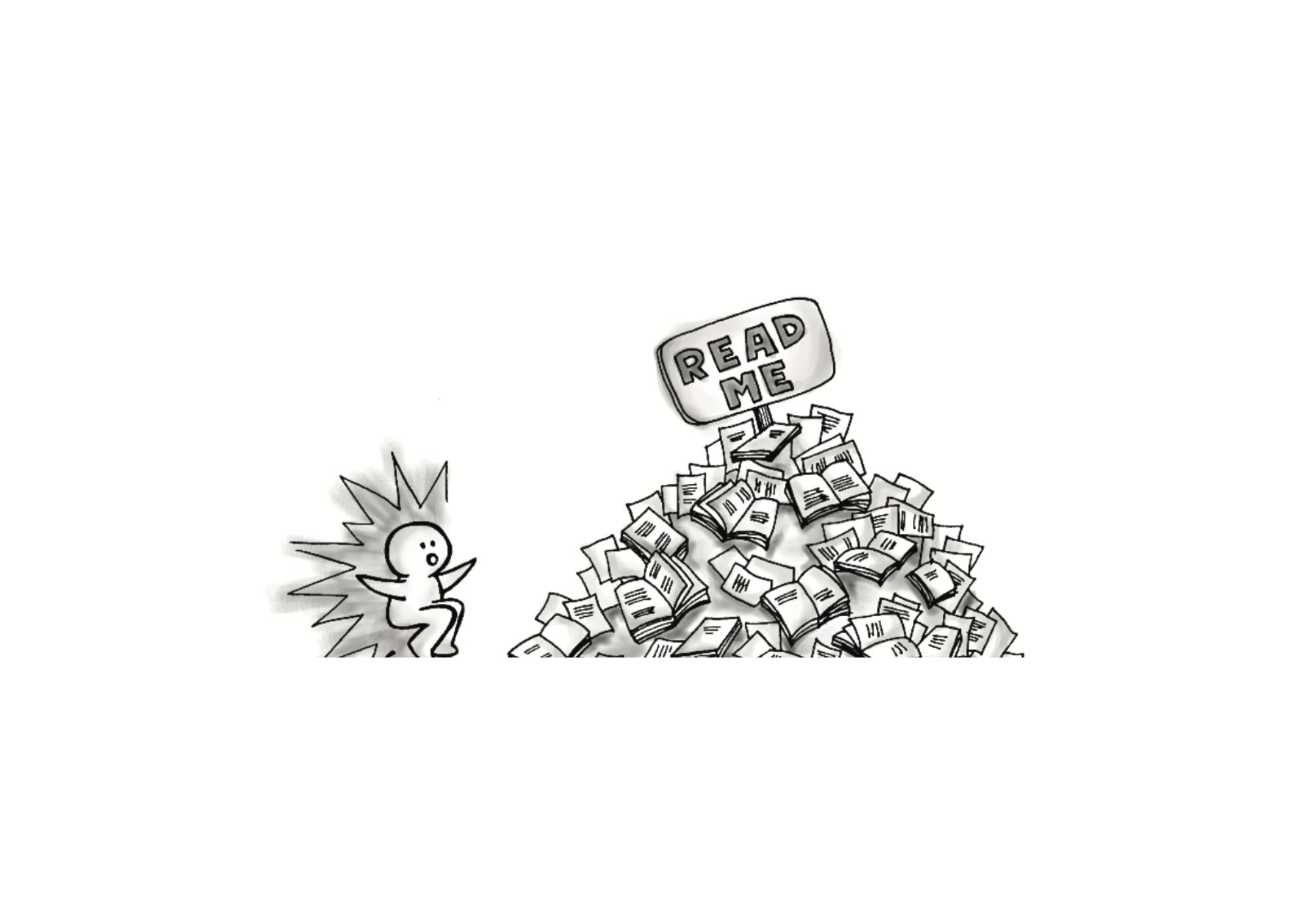
Digital publishing and social networks have accelerated the amount of information we’re exposed to today. We’re publishing more information and are more connected than at any other time in history.
The last such burst of information occurred after Gutenberg mechanised bookmaking around 1440. We then had libraries, librarians, and classification systems to access and manage the growing collections.
The same happens in today’s digital world—the scales have just changed.
**Websites, intranets, shared folders, and collaboration spaces = the new libraries**
**Web team, intranet team and, more commonly, regular staff (employees) = the new librarians**
**Lists, categories, trees, facets, taxonomies—the stuff you’ll learn in this book = the classification systems**
In 1876, the American librarian Charles Ammi Cutter laid out three rules for a library:
1. To enable a person to find a book
2. To show what the library has
3. To assist in choosing a book
These three rules also apply to digital information. If you’re responsible for your company’s website or intranet, you must ensure your information is found and used. You also have to build opportunities for serendipity and discovery so that users can stumble upon the wealth of information on your site.
If you’re part of a project team managing thousands of documents, you must ensure your team members find the documents easily. However, this notion of organising for others may be new to you. For the longest time, you’ve organised information only for yourself—using folders on your desktop. Now, you have to think about others.
In the following chapters, you’ll learn various ways to organise digital information.
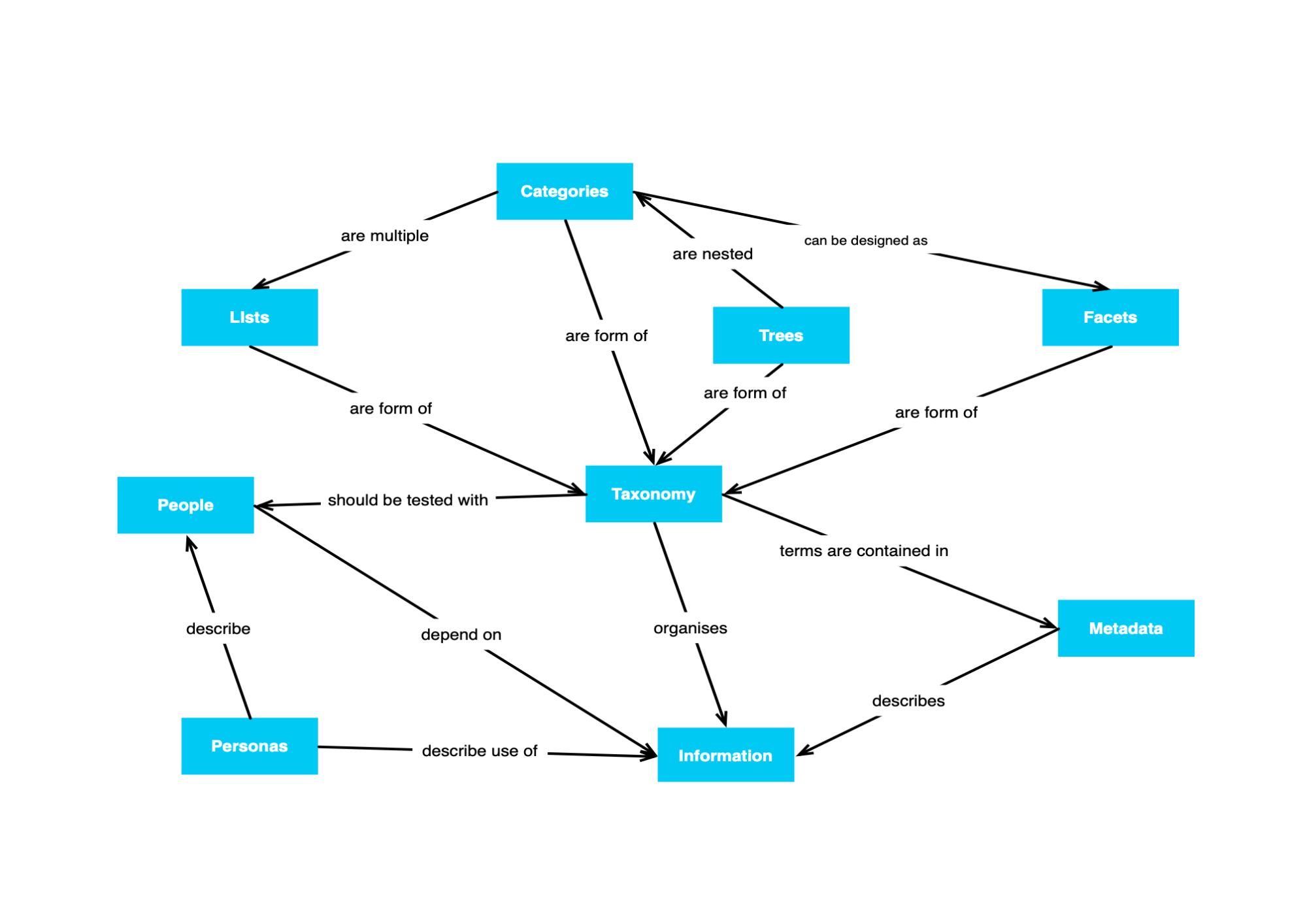
Below is a map of the concepts we’ll cover in this book.
# Understanding your users

How you organise information depends on whom you’re organising for. For example, you might organise the same information one way for doctors but another way for patients.
There are many ways to understand the target users. You can observe them, talk to them, or learn about them. If the target users are people in your company, you’ll be surprised at how much you already know about them.
At the very least, you should be looking for:
- The job they are trying to get done
- The information they need to get the job done
- How they look for this information—the information-seeking behaviour
Below is an oversimplified description of intent, part of a persona in design literature.
> _Joan is an event planner at ABee. Her immediate job is to plan the upcoming East Asia Forum. She hopes to use last year’s event report as a reference. She will look for it on the company’s intranet. She sets off with the keywords: East Asia Forum, annual events, report, 2010_.
If people like Joan are your information target users, then such little descriptions of intent can go a long way in shaping how you organise information for them.
An essential tip: get to know the people for whom you are organising information.
Another tip: don’t stop here; keep testing your designs with them. Later in the book, you will learn about two tests: card sorting and usability testing.
# Lists

Lists are a simple and elegant way of organising low-volume information.
We’ve all made lists at some point. We create shopping lists, to-do lists, checklists, and reminder lists without even realizing that we’re using one of the most natural and efficient information organization devices available.
Lists are useful because they group related information, which can be things, concepts or ideas.
A list of things to buy on the next visit to the grocery store:
- Bread
- Eggs
- Cheese
- Tomatoes
- Carrots
- Milk
- Batteries
A list of webpages on planning an official overseas trip:
- Research and planning
- Budget
- Accommodation
- Air transport
- Land transport
- Local contacts
- Emergency numbers
- FAQs
Although lists are easy and effective when you’re the one using it, things can be a little different when you make lists for others. This is because others don’t have the same context and understanding you use when creating the list.
Given below is a list of pages on an intranet that show how to purchase products and services:
- ITT
- ITQ
- <3k
- Reimbursements
- Period
- Outsource
You know precisely what you’re referring to if you've made this list.
However, for everybody else, it is a list of unknowns!
If you want to know: ITT is “Invitation to Tender” and ITQ is “Invitation to Quote”.
You might argue that everybody in the company would have the background knowledge to understand the list. This can only be possible if nobody leaves or joins the company and those that stay on come to the same conclusion as you. This is a tall order of shared understanding to ask for.
This brings us to the first principle of making lists: All terms used in a list should pass the common knowledge test.
## Common knowledge
Common knowledge is knowledge that is common among a group of people. The group can be small, like people in a project team, or the group can be large, like everyone in the company.
Here are some examples:
- Driving on the left side of the road is common knowledge in Singapore but not in the US.
- Requiring quotes from three different vendors before awarding a project is common knowledge in government agencies but not commercial organisations.
- Using the finance system to make large value purchases and requesting the Admin department to make small value purchases could be common knowledge in one company but not in another.
To repeat, the first principle in making lists: **The terms used in a list must be common knowledge to the people using the list**.
A corollary would be: **Don’t use terms in the list that will make others think.**
The list of pages on making purchases shown previously (Version 1) makes people think. A better version would be something like this (see version 2):
Version 1
Purchases
- ITT
- ITQ
- <3k
- Reimbursements
- Period
- Outsource
Version 2
Making purchases
- Making purchases—terms you need to know
- Above 70k – Invitation to Tender
- Below 70k – Initiation to Quote
- Below 3k - Small value
- Below 100 dollars (reimbursements)
- Period contract
- Outsourcing
The list on the right has the following elements:
- Organising principle
- Sequence
- Category labels
- List terms
In the following sections, we’ll go through these elements in detail.
## Organising principle
The organising principle determines how the terms in the list are grouped. For example, the previous list on 'Making purchases' is grouped according to the different types of purchases.
Richard Saul Wurman, the author of [_Information Anxiety_](https://www.amazon.com/Information-Anxiety-Richard-Saul-Wurman/dp/0385243944/), proposed that information could be organised in five different ways:
1. Location
2. Alphabet (A-Z)
3. Time
4. Category (subject or topic)
5. Hierarchy (continuum or range)
The 5 ways form the acronym LATCH. Let’s consider an example.
Let’s say I want to organise a set of trip reports. Here are the different ways I can do this using LATCH.
### Location
Since trips are made to different locations, I could group trip reports by the different locations they were made to.
- Trips made to Asia
- Trips made to US & Canada
- Trips made to Europe
### By Alphabet (A-Z)
Trip reports have a name, so I can use that to group all trip reports by alphabet.
- A1 trip report
- A2 trip report
- B1 trip report
- B2 trip report
- ...
### By Time
Trips are made at different times, so I can group them by the year they were made.
- Trips made in 2020
- Trips made in 2021
- Trips made in 2022
- Trips made in 2023
### By Category (subject or topic)
Trips are made for different reasons, such as research and study or conferences, so that I can group them by these reasons or categories. Grouping by categories is the most common type of organisation.
- Trips made for research and study
- Trips made for joint visits
- Trips made for conferences
### By Hierarchy (continuum or range)
When Wurman suggested this way of grouping, he was referring to the range of a particular variable, such as the cost of the trip. I could, for example, group my trip reports based on how much they cost the company. People auditing the company's finances will find such a grouping very useful!
- Less than $5000
- $5000-$10,000
- More than $10,000
There you have it: five different ways of organising trip reports. But are there only five ways of organising information? Not quite. We could add a few more: by audience and by task.
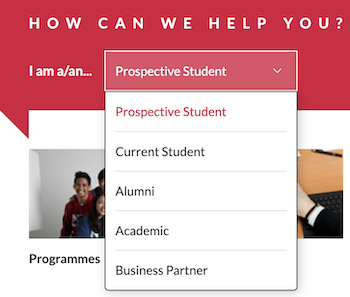
Most education websites have an organisation around their audiences, as shown below.
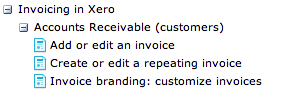
The help section in Xero, an online accounting application, is organised by task.
### Organising and meaning
Going back to trip reports, did you notice that each way of organising gave trip reports a specific view and meaning? Organising by location gave a view and meaning that organising by budget did not.
So, which way of organising is better? This depends on why you are organising and for whom. If you were organising trip reports for a finance officer in charge of budgets, then organising by hierarchy (by cost range) may work.
Tony Pritchard describes such a search for meaning in organising the names in The [Vietnam War Memorial in Washington, DC](https://www.defense.gov/Multimedia/Experience/Vietnam-Veterans-Memorial/). Organising the names alphabetically would depersonalise the lives of the soldiers. Organising by rank (category) would have the same outcome. The authorities, therefore, decided to organise the names of the soldiers based on those they died with. As Pritchard says, “Any other organisation would have altered the meaning and form of the memorial”.
Let’s move on to Sequence.
## Sequence
You must have guessed this. A sequence is the order in which the terms appear in the list.
Here is a simple two-step technique you can use to determine the sequence.
1. Check if there is an inherent logical sequence. For example:
- Latest on top (by date)
- First to last
- Frequently to occasionally
- Simple to complex
- Known to unknown
1. If you can’t find an inherent sequence, go for alphabetical (A-Z) sequencing
If you think there is a structure, and you can’t pick a winner, do a card-sorting test (see the chapter on Card Sorting).
## Category labels
After considering the organising principle and the sequence of terms, it’s time to give the list a good category label. Without a label, nothing holds the list together. For example, a list of documents does not mean much unless you give it a label, such as 'trip reports'.
Let’s consider an example.
In the list below, **Broccoli** belongs to the **Vegetables** category.
**Vegetables**
- Broccoli
- Carrots
- Cauliflower
Each term in the list has the same relationship to the category label—they are all veggies. If I add ‘banana’ to the list, the relationship will break—it’s a fruit, not a vegetable.
This is not a revelation—we’re exposed to this kind of stuff as kids. Remember the activity called ‘Pick the odd one out’?
Let’s take a look at the Vegetables category again. If I change the category label to **A healthy diet**, then bananas can be on the list. The relationship is now correct and intuitive.
**A healthy diet**
- Bananas
- Broccoli
- Carrots
- Fish
- ...
Some categories are so common that we know exactly what they contain, such as the **Vegetables** or **Pop Music** categories. But will people know what exactly goes under the **Trip reports** category?
This gives us another principle of categories: like the terms in a list, categories are also subject to common knowledge. **Trip reports** may seem out of place if staff seldom go on trips or don’t write trip reports.
Let’s assume that category trip reports pass the **common knowledge** test. But is the name the best we can come up with? Or are there better ways of naming categories?
As with everything else, some guidelines and principles can help us.
Good category labels:
- Clearly describe the terms in the list • use simple everyday words
- Use verbs where possible
- Are concise
Web writing expert [Ginny Redish lists three types of labels](https://uxmag.com/articles/content-as-conversation):
| Type of label | **What it is** | **Example** | **Scope** |
|---------------|----------------------------------------|---------------------------------|-----------|
| Question | A label in the form of a question | How do I plan an overseas trip? | Narrow |
| Statement | A label that uses a noun and a verb | Planning an overseas trip | Broad |
| Topic | A label that is a word or short phrase | Overseas trips | Broader |
The **Question** and **Statement** types work well on websites and intranets. This does not mean that you should avoid using **Topic** type. On the contrary, topical names will work quite well if the terms in the list are familiar to your group.
Here are some category labels used for listing staff benefits:
- Medical
- Dental
- Insurance
What does all this mean? Before creating lists for others to use, we need to consider the common knowledge effect. When in doubt, do a card-sorting test (see chapter on Card Sorting).
## List terms
Now that we've covered Lists and the importance of Category labels, we can turn our attention to the terms that make up the list itself.
The terms in a list denote action. For example, when going through a grocery list, each term is an item you must buy. When you come across a list in the digital space, it usually is a link to another page or document. In other words, a navigational list.
Since the terms are links to webpages and documents, we are really talking about the naming convention of these items.
Let's consider an example:
| **Excellent service award** | **Excellent service award** | **Excellent service award** |
|--------------------------------------------------------------------------------------|-----------------------------------------------------------------------------------------------------------------|-------------------------------------------------------------|
| - What is it?
- Who is eligible?
- How to apply?
- Who has won this before? | - About the award
- Check if you are eligible
- Submit your application
- View gallery of past winners | - Award
- Eligibility
- Application
- Past winners |
Did you notice that the terms under a category are the same type?
The terms do not change from a Question type to a Topic type. This is called **parallelism**. When naming terms, try to keep to one type. Using different types confuses people.
Here is the same list using different types.
- Excellent service award
- What is it?
- Checking if you’re eligible
- Application
- Who has won this before?
The list most likely slowed you down a bit because you had to switch between different types.
You are now ready to tackle Trees!
# Trees

The previous chapter was all about single categories. But categories can be nested as well—**categories under categories.** And this nesting can go deep. Just look at your PC’s file manager for examples of deeply nested categories.
These nested categories are called **trees**. We can also refer to them as hierarchies, but hierarchies imply an inheritance property. In the example below, a Square inherits the qualities of the broader terms. A Square is-a Quadrilateral, is-a Polygon and is-a Shape.
- -> Shape
- --> Polygon
- ---> Quadrilateral
- ----> Square
In the example below, however, Privates do not inherit the qualities of the higher chain of command. A Private is not a Sergeant, for example.
This arrangement is called a tree. Trees offer a more lenient approach to nested categories.
- -> Generals
- --> Colonels
- ---> Captains
- ----> Lieutenants
- ------> Sergeants
- -------> Privates
Shown below is an example of a tree used in intranets.
- -> **Corporate affairs**
- --> Human resources
- --> Finance
- --> ...
- -> **Products**
- -> **Sales**
- -> ...
Here is a question: Why do we have trees? Why can’t we live with multiple independent categories?
You'd use a list if you had only a few items to arrange. If you had more than a few, say 15-20 items on the list, then you’d categorise them into logical groups. If you had around 200-500 items on the list, you’d categorise them but may start finding a need to nest them, thereby building a tree. Maintaining multiple categories at this point makes the arrangement unwieldy. Look at your computer's folder structure—a classic example of a tree structure.
The primary purpose of trees is to organise large amounts of information so that we can understand and use it more efficiently. This is the same reason we have corporate structures (trees)—to command and manage the company and drive it to success.
A folder structure on your computer is still manageable as you create and nest the folders. But what happens when you want to share your folder structure with others?
Your folder structure may not go down well with others unless and only if the principle behind the arrangement is common knowledge. The only way to know for sure is to test it out.
Did you notice how many times we’ve resorted to card sorting?
## Shape of a tree
A common question about trees concerns their shape: Should they be narrow and deep or broad and shallow?
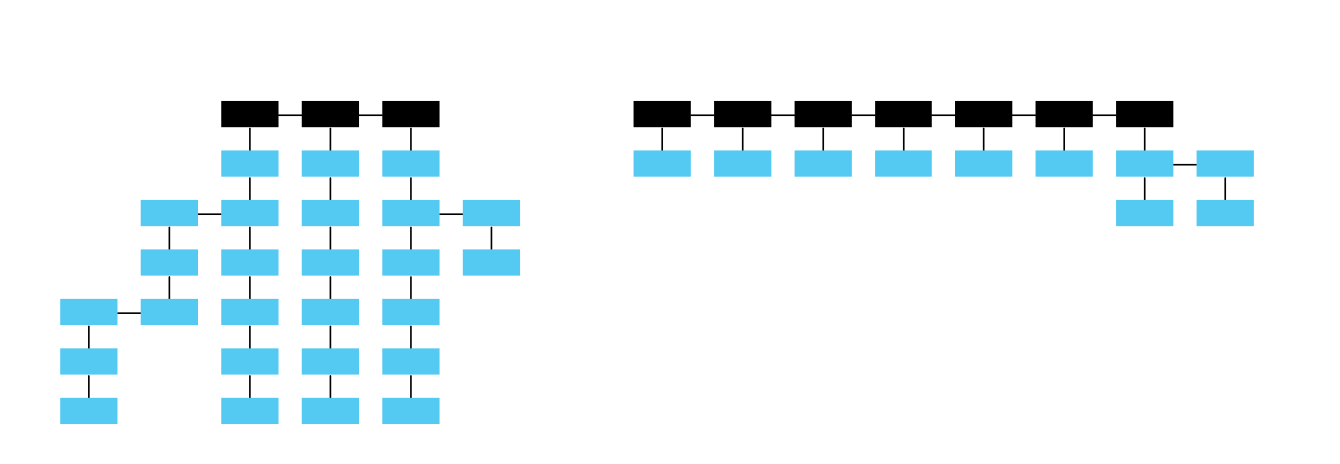
The shape of a tree affects the **predictability** of finding information on it.
A broad-and-shallow tree shows more of it at first, so it is more predictable. However, what happens if the categories are similar or ambiguous in meaning? Users will have a hard time figuring out which categories to go with.
Or, a narrow-and-deep tree offers users fewer entry points, making it more predictable. This is not quite right here, either. What if the deeper levels are used more frequently? Users will need to make many decisions before getting to the right level.
So, back to the original question: narrow-and-deep or broad-and- shallow? The answer: it depends!
But here’s a tip: **start with the broad-and-shallow shape first**. Just be careful with overlapping or confusing categories. Broad-and-shallow improves the visual scanning of information, which people often do when browsing.
## Problem with trees
Let’s take an example to understand the problem with trees. Let’s say you’ve created a tree for organising **trip reports**.
Staff go on trips and then write a report on what they did, what they learned, whom they met, and so on. This is called a trip report. The trip report becomes the diary for the trip and an important source of knowledge that can benefit others.
The purpose of creating the tree structure is to help:
- Staff submit their trip reports
- Staff find previous trip reports
How would you make it if you were in charge of creating the tree structure?
If you want to make it easy for staff to submit the report, you might organise the folder by year with the organising principle: by the year the trip was made.
- 2024
- 2023
- 2022
So far, it is a good organising principle. But what happens when a staff comes along looking for a report on a trip made to Australia?
Well, she better know the year the trip was made! Otherwise, she’ll be spending time (and company money) opening every category and looking for the report on the Australia trip.
You say, Organise by ‘country’ and by ‘year’ then. That should do it.
Let’s see.
- **Australia**
- --> 2024
- --> 2023
- --> 2022
- **Cambodia**
- --> 2024
- --> 2023
- --> 2022
This might serve both staff submitting the report and staff seeking the report. However, there is still one problem. You knew this was coming!
Trips are rarely made to chalk up visits to different countries. They are made to serve work-related goals. They may be trips made for academic conferences, research collaboration or joint exercises. If only a few such trips are made in a year, then we’re still okay with the tree structure by country.
But if many such trips are made, then you may have the possibility of staff coming along looking for ‘**joint exercises in 2022**’. If you have many such queries, then you’re in trouble. Staff will have to do the unproductive work of opening and checking every document under 2008 to find joint-exercises reports.
You only wish you could have information magically reorganise itself into different tree structures on demand—one by year, another by country and another by purpose. Only then could you satisfy all types of queries (at least a large majority of them).
You’re in luck. There is a way to create this on-demand organisation of information. It is called organising by **facets**.
# Facets

A facet is a particular view of information. Information can have many facets.
Let’s get back to our example on trip reports. You’ve already picked out many facets or views to the reports. These are:
- By year
- By country
- By purpose
Note that facets have values as shown:
By year
- 2024
- 2023
- 2022
By country
- Singapore
- United States
- Malaysia
By purpose
- Academic conference
- Research collaboration
- Joint-exercise
Every trip report can now be assigned values from the list above.
| Document | Year | Country | Purpose |
|----------|------|---------------|------------------------|
| x1.doc | 2024 | Malaysia | Academic conference |
| x2.doc | 2022 | United States | Research collaboration |
Here are a couple of points to note about the table:
- It is very different from a folder structure—it is one big table
- Unlike the folder structure, this table does not include the physical document; it just gives a reference to the document, which might reside on a document server
- Every document is assigned values from the relevant facets
Facets offer significant advantages over trees:
- **Start with any view**: By year, country or purpose. You don’t have a choice with trees—you’re stuck with the view chosen by the person who created the tree.
- **Search faster**: For example, show all trip reports made to Malaysia in 2022 for academic conferences.
When you select facets, you filter or narrow the collection to show only the documents you’re interested in. Let’s look at a few examples to see how this works.
Facets have become the default way to navigate and search extensive collections online. When you buy something from Amazon or book a hotel on Expedia, you will most likely navigate through facets. However, faceted navigation is still a struggle on intranets. The reason is not a lack of high-quality applications but that no effort is made to identify and choose the right facets.
## Choosing facets
How do you pick the right facets for your information? By understanding how others would like to find your information.
Experts in information science have identified several facets that seem to apply to many types of information across many disciplines. These are listed below. You can use them as a reference or starting point.
General facets to information:
- By the thing, the kind or type of thing, or its properties
- By time
- By location
- By author
- By activity, task or operation
The facets for trip reports (the thing) match up as follows:
- Year (time)
- Country (location)
- Purpose (outcome)
Facets must be mutually exclusive (no overlaps). You cannot, for example, have a facet for Regions (North America, Asia, etc.) and another facet for Countries.
Countries
- Australia
- Singapore
Regions
- North America
- Asia Pacific
You might think of combining the two into a single facet, say, **Locations**. Even then, you cannot have terms that overlap in meaning. In the example below, how would you classify a trip to Singapore? Will it be under Singapore or Asia?
Locations
- North America
- Europe
- Asia
- Singapore
- Hong Kong
- Australia and Oceania
- Middle East
This does bring up an interesting scenario: What if you **nest** the terms?
The following is valid:
- North America
- Europe
- Asia
- -> Singapore
- -> Hong Kong
- Australia and Oceania
- Middle East
In other words, facet terms can be lists or categories. Keep this in mind, and you’ll be fine!
## When to use facets? When to use trees?
Trees are used when a single dimension or view of the organisation is enough. For example, consider this structure:
Staff handbook
- Leave
- --> Annual leave
- --> Sick leave
- Benefits
- --> Medical benefits
- --> Insurance plans
Now, you may want to **control this structure**. You want all the types of **Leave** to be in a particular order, and you want **Insurance plans **to come after **Medical benefits**. You may also want all staff to see this single view. In such a case, it may be better to use a tree.
If, on the other hand, you have 5,000 documents and a deliberate structure between the documents does not matter, then we can help staff find the documents using appropriate facets.
This brings us to the principle: if you want to present staff with a single, deliberate structure, use a tree. If you want staff to access the information from multiple views then use facets.
# Metadata
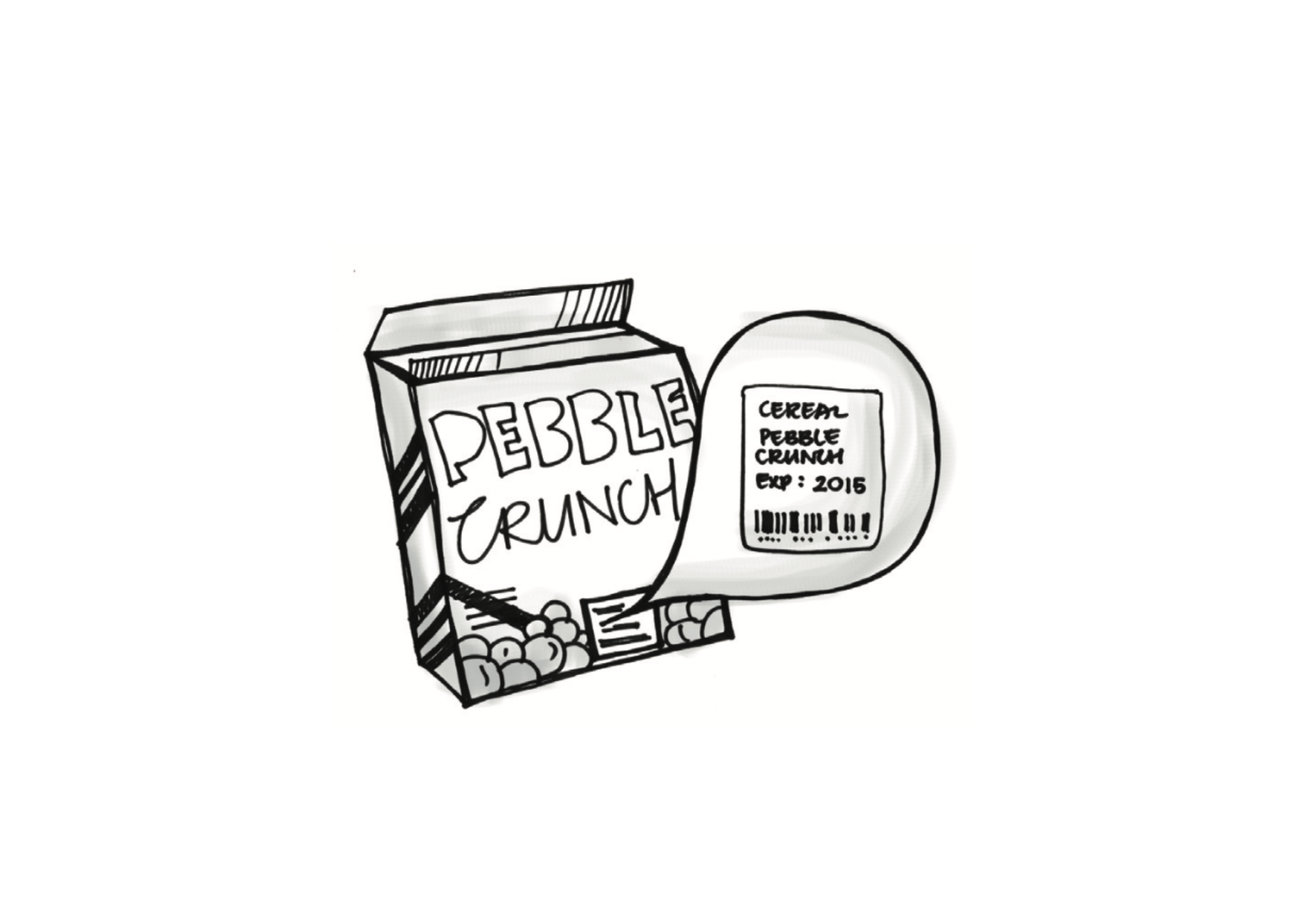
To understand metadata, ask yourself this question the next time you go shopping: can I get all the information I need from this product I’m holding to make a well-informed purchase decision?
If you have all the information you need, then you most probably got it from the product's label. The label shows the brand, material, price, and any applicable discounts. The information on the label is metadata.
It is the same with digital information. If you look at a document and get the **Title**, **Author**, **Description**, and **Date** it was published, you’re looking at the document’s metadata.
There are two things you need to know about metadata:
- Metadata is not usually part of the document body (just like labels are not part of the food)
- Metadata contains rich information that identifies the document (e.g. Title, Author, Publish Date etc.)
Here’s a question: What happens if 10 documents have an **Author** metadata and 10 other documents have a **Creator** metadata to refer to the same thing—the person who authored the document? How will you find this document?
The search algorithm must know that Author = Creator to give good results.
Now, imagine the engine's overheads if there are hundreds of such lookups. It makes the use of metadata seem inefficient.
A simple solution exists: **be consistent with metadata.**
Another question: Is it possible to get consistent metadata values that can be applied to all types of information in the company?
Yes. But there’s more to it.
1. Not all information requires all metadata. Draft or personal documents, for example, will need little metadata, if any.
2. We can start with a generic metadata set for information that needs metadata. You’ve already seen glimpses of it in the previous paragraphs. Title, Author, Description, Publish Date, etc., are generic metadata sets that can be applied to any type of information.
Such metadata is so generic that a standard known as [Dublin Core](https://www.dublincore.org/specifications/dublin-core/dces/) describes 15 metadata elements that can be used for all types of information. The fifteen elements are Contributor, Coverage, Creator, Date, Description, Format, Identifier, Language, Publisher, Relation, Rights, Source, Subject, Title, and Type.
After the generic set, we’ll need another set specific to the company's needs. It covers metadata such as Approvals, Workflow, Security and Preservation. This requires a bit of research and study. An external consultant is usually sought for this kind of work.
So there you have it: metadata = generic set + specific set.
## Assigning metadata
Now that the company's metadata set is specified, how will staff assign metadata to the information they create? The assignment is usually done using the content management system (CMS) you use for the website or intranet.
Assigning metadata can be frustrating if not appropriately planned. When staff complain that “the system puts up this screen and expects me
to fill out 20 fields, " they complain about the metadata assignment strategy.
There are many ways to make the assignment simple and usable. We’ll cover three here:
1. **System-assigned**: The CMS can automatically assign some values. For example, the system can automatically apply the Author, Publish Date, and File type.
2. **Smart defaults**: Smart defaults try to predict the context of the user and present values that they think will be relevant. For example, the CMS might surface my commonly used metadata values or only those metadata applicable to the user’s department or job function.
3. **Smart templates**: Templates can have pre-assigned metadata. Authors only need to fill out the remaining metadata. This can speed up the authoring process.
## Metadata and controlled vocabularies
Let’s say you ask staff to fill out the **Purpose** of the trip when submitting trip reports. What will they fill out? Some might put ‘business’ while others might put ‘JE’ for joint exercises. You see the problem. There will be no consistency in what staff enter as metadata. How can we then get consistent metadata values?
By controlling what staff can choose.
A controlled vocabulary is a controlled list of terms. Let’s say you give staff only three options to fill out the Purpose of the trip.
1. Academic conferences
2. Joint exercises
3. Research collaboration
Staff can only select from these three options. The values are **controlled**.
But what if the controlled vocabulary is itself confusing and ambiguous? Again, it is a severe problem, pointing to a lack of a metadata strategy.
A controlled vocabulary can do more than control authors' term selection. It can also enable some backend magic during search and retrieval.
Let’s say a staff member searches for the term “JE,” the informal use of the term “Joint Exercises.” Trip reports, being formal documents, do not contain the term “JE.” They are assigned the metadata term “Joint Exercises.” The result is that the search engines will not find the documents, even though they exist.
This is where an expanded, controlled vocabulary can shine through. Instead of just listing controlled terms, it can also include the following:
JE USE Joint Exercises
The statement tells the search engine to use the term “Joint Exercises” when it encounters the term “JE.” Problem solved.
You can imagine more situations where this simple expansion could help, such as homonyms, misspellings and abbreviations.
But wait. There’s more!
A controlled vocabulary can be expanded in more ways:
- NT = narrower term (Marketing NT Corporate Marketing)
- BT = broader term (Invitation to Quote BT Corporate Procurement)
- RT = related term (Trip report RT Country Report)
We are structuring the linear list of terms in the controlled vocabulary, thereby creating a hierarchy. This kind of controlled vocabulary is called a **thesaurus**.
# Taxonomy
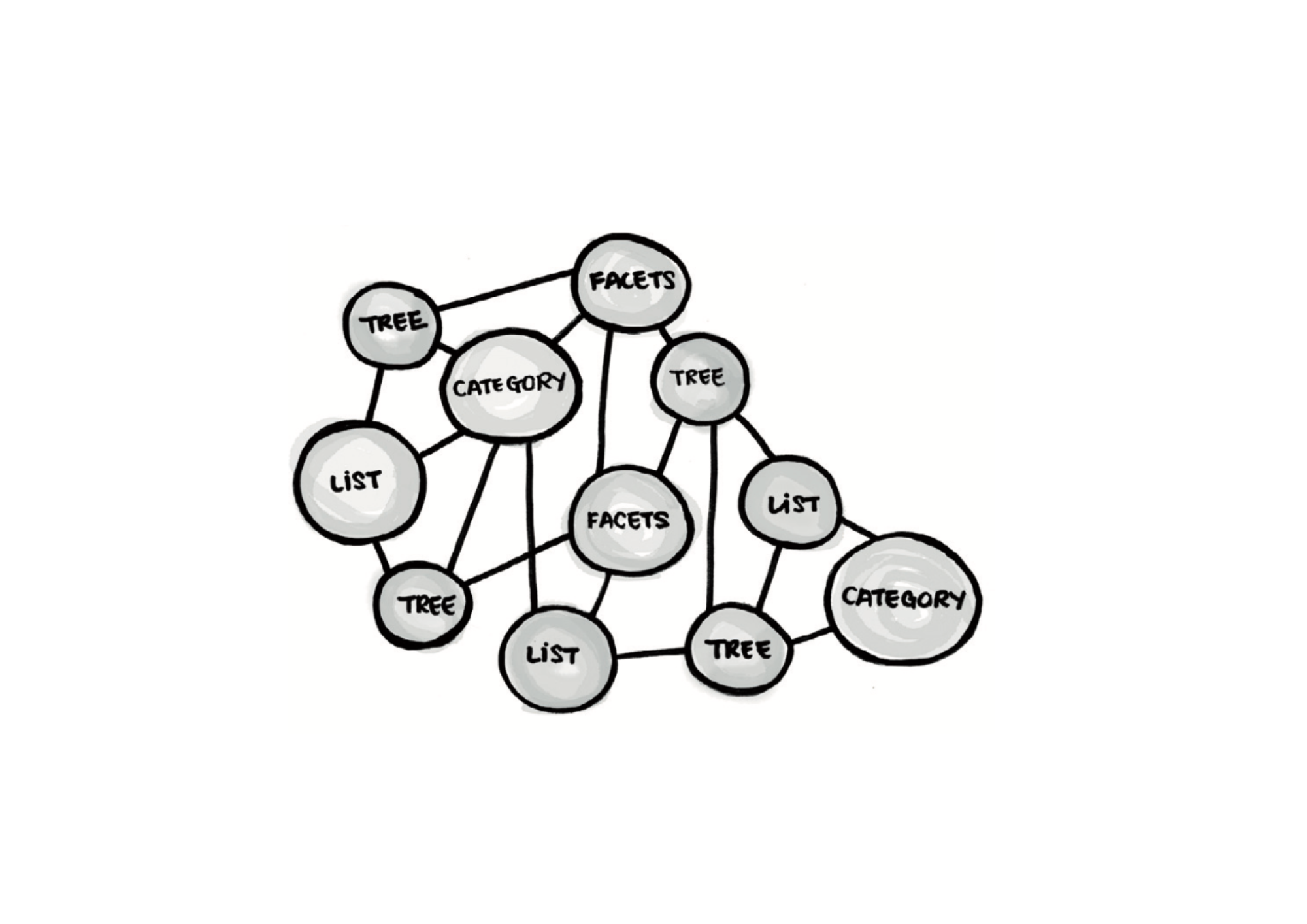
A **taxonomy** is a structured way of organising information. It comes in different shapes and sizes. And it is sometimes hierarchical.
Yes, you read that right—taxonomy is not always hierarchical.
The different ways of organising information you’ve seen in this book—lists, categories, trees, facets—are shapes a taxonomy can take.
Patrick Lambe has written an illustrative post titled "[What shape is a taxonomy?](http://www.greenchameleon.com/gc/blog_detail/what_shape_is_a_taxonomy/)"where he describes why treating a taxonomy as only hierarchical may be misleading.
If a taxonomy is a structured way of organising information and can take many shapes, then we’re looking at a system of taxonomies all working together in a company. This is usually called a **corporate taxonomy.**
So, a corporate taxonomy is not one gigantic structure for organising all corporate information. It is a system of multiple taxonomies.
The glue that connects the system is metadata. A common metadata connects taxonomies.
Think about these two points the next time you’re organising information:
- The shape of your taxonomy will help others quickly look for your document
- The metadata you apply will surface your document in places (other taxonomies) and in situations that you would have never guessed, thereby enabling knowledge discovery
## Taxonomy and metadata
Taxonomy is how information is structured, while metadata contains terms that describe the information.
Taxonomy terms usually appear in metadata in the form of subject terms or category terms. This is how a taxonomy can link up with other taxonomies.
- Title
- Author
- Date
- Category (<-- from taxonomy)
Note that you can have more than one Category metadata field. If you are using several facets, you will have a category metadata field for each facet.
## Taxonomy and tags
Tagging is about assigning personal metadata to information. When you tag your photos as "nature" or "notes," you assign personal metadata to them. The photos will show up when you search for these terms.
This works when you tag your stuff, but what happens when you assign tags for others, as you would in a corporate setting? It goes back to common knowledge. If more people understand the tag terms, they will be more effective.
Tags can be captured and used as metadata. The difference is that they are not controlled.
When you tag your photos, you can choose any terms you want—tagging is uncontrolled. But this has a drawback—you end up with many similar tags, for example, "nature," "sunny day," "trees," etc. With this approach, retrieval becomes a problem.
Today, we see products trying to force some sort of control when tagging. Consider tagging on LinkedIn. When you use the tag trigger "#" sign and start typing the letters "#digitalt.", it will automatically show you "digital-transformation," a sort of type-ahead. LinkedIn is trying to avoid tagging sprawl by trying to control the terms so it can improve retrieval.
# Testing

Organising information for others is a big responsibility. Your design can influence other people’s productivity and understanding when they visit your page, website or intranet.
The key to becoming good at organising information is to be reflective and challenge your decisions. Do I have the correct organising principle in place? Have I selected the proper shape of the taxonomy? Is it usable? What’s stopping the information from being found? You can get answers to these questions by constantly testing your ideas and designs with target users.
Two techniques are often used to run such tests: card sorting and usability testing.
## Card sorting
Card sorting is a simple exercise for creating categories or testing the categories' effectiveness.
Since trees and facets also use categories, card sorting also helps in testing trees and facets.
The technique goes something like this:
- Gather all the terms you want to test.
- Write down each term on a yellow-coloured index card. Again, you can use any colour. Use one card per term.
- Place all the cards on the table.
- Invite participants and make them feel comfortable.
- Ask the participants to group the cards that they think belong together.
- Ask them to label their groups.
- Analyse the results and compare them with any initial structure you had in mind.
The type of card sorting mentioned above is called **open card sorting**. It is open in the sense that there are no pre-defined categories.
**Closed card sorting**, on the other hand, is when we do the exercise with pre-defined categories. Here’s how it might go after putting the yellow cards on the table:
- Jot down the name of each category you want to test on a red index card. You can use any colour. Use one card per category.
- Ask the participants to match the yellow cards to the categories they think the card belongs to.
- Analyse the results and check if the categories are intuitive.
As you would have guessed, open card sorts are great for developing shared categories because you’re focusing on the participants' common knowledge.
You can also use tools like [TreeJack](https://www.optimalworkshop.com/product/tree-testing) to run remote card sorting exercises. These tools also do the math for you and present the findings visually. Talk about making things simple!
## Usability testing
Even if you know the different ways of organising information for others, your design may not be usable. This is sad but often true.
Usability is about making it easy for users to use your design. Over the years, the design community has provided [some excellent guidelines](https://www.nngroup.com/articles/ten-usability-heuristics/). However, even after using the guidelines, users may be confused with your design. But what could be confusing? To find this out, you need to put your design to the test. Such a test is called a **Usability test**.
A usability test goes something like this:
- Know why you are testing (create the hypothesis)
- Write down scenarios that will give data to test your hypothesis
- Create the page or pages you want to test
- Recruit the right users to take the test
- Run the test and record the session
- Thank your participants and start analysing the results
When considering usability issues, do not ignore the authoring and publishing interfaces. Many times, usability issues that end users face (front-stage issues) are a result of the problems that the authors face (back-stage issues).
# Conclusion

This book covered much ground, from lists to trees and metadata to taxonomy. Although we took an introductory approach to these subjects, it gives you the confidence to converse with your team and colleagues about the importance of organising information for others. These conversations, in turn, can help make our pages, websites, and intranets more effective and the people using them happier!
So, go ahead and spread the message and let the conversations begin!
Happy organising!
# Acknowledgements
This book was published as a PDF e-book in 2012. We thought it was done and dusted. However, with the rise of LLMs and GenAI, we educate many people on these concepts. We decided to update the content to reflect where it can be used with AI and publish it as an online book.
We want to thank Patrick Lambe, Martin White and James Robertson for their valuable inputs.